
Install & connect
You will install Optigram on a GHL sub-account, grant OAuth access, paste a Telegram bot token, and confirm the provider is active. Plan on one bot per location — do not share a BotFather token across sub-accounts.
1. Install from the Marketplace
- From the agency Marketplace, install Optigram for Telegram onto the client account (location) that should own the channel. Location admins cannot self-install.
- Approve the OAuth prompt. Optigram requests conversation and contact scopes only:
conversations/message.write,conversations/message.readonly,conversations.readonly,conversations.write,contacts.readonly,contacts.write. - After install, Optigram appears in the left menu of that sub-account (Custom Page). The dashboard embeds inside GHL; you should not need a separate login. You will paste the bot token there in the next step.
2. Create a Telegram bot
You need a Telegram bot for this location. Telegram’s official bot, @BotFather, creates it. Use the Telegram app on your phone or computer — not a web search.
- In the Telegram app, tap the search button (the magnifying glass).
-
Search for @BotFather. Open the result with the blue verified badge
(a checkmark next to the name). Ignore lookalikes under Global Search.
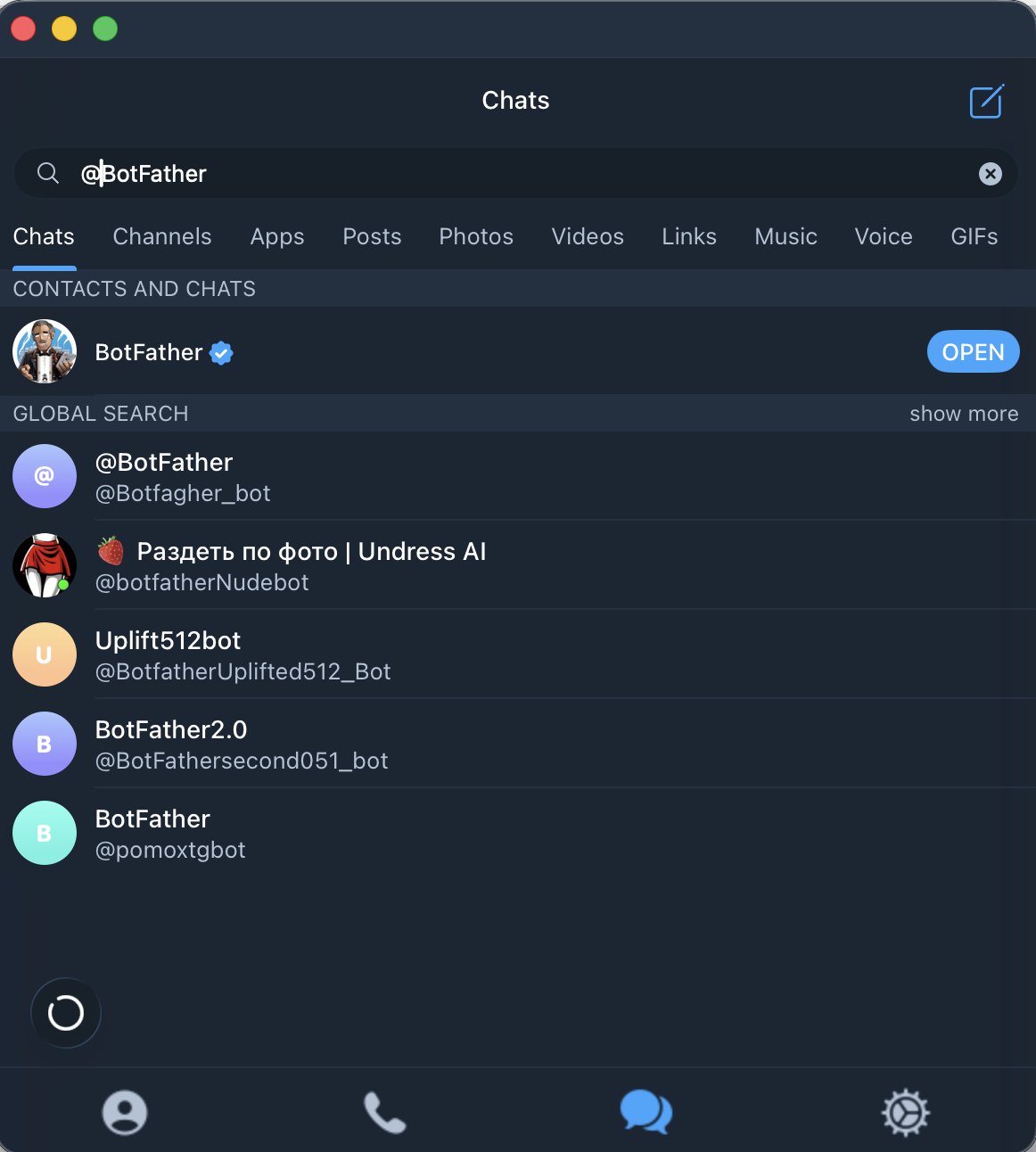
Telegram desktop — choose the verified BotFather 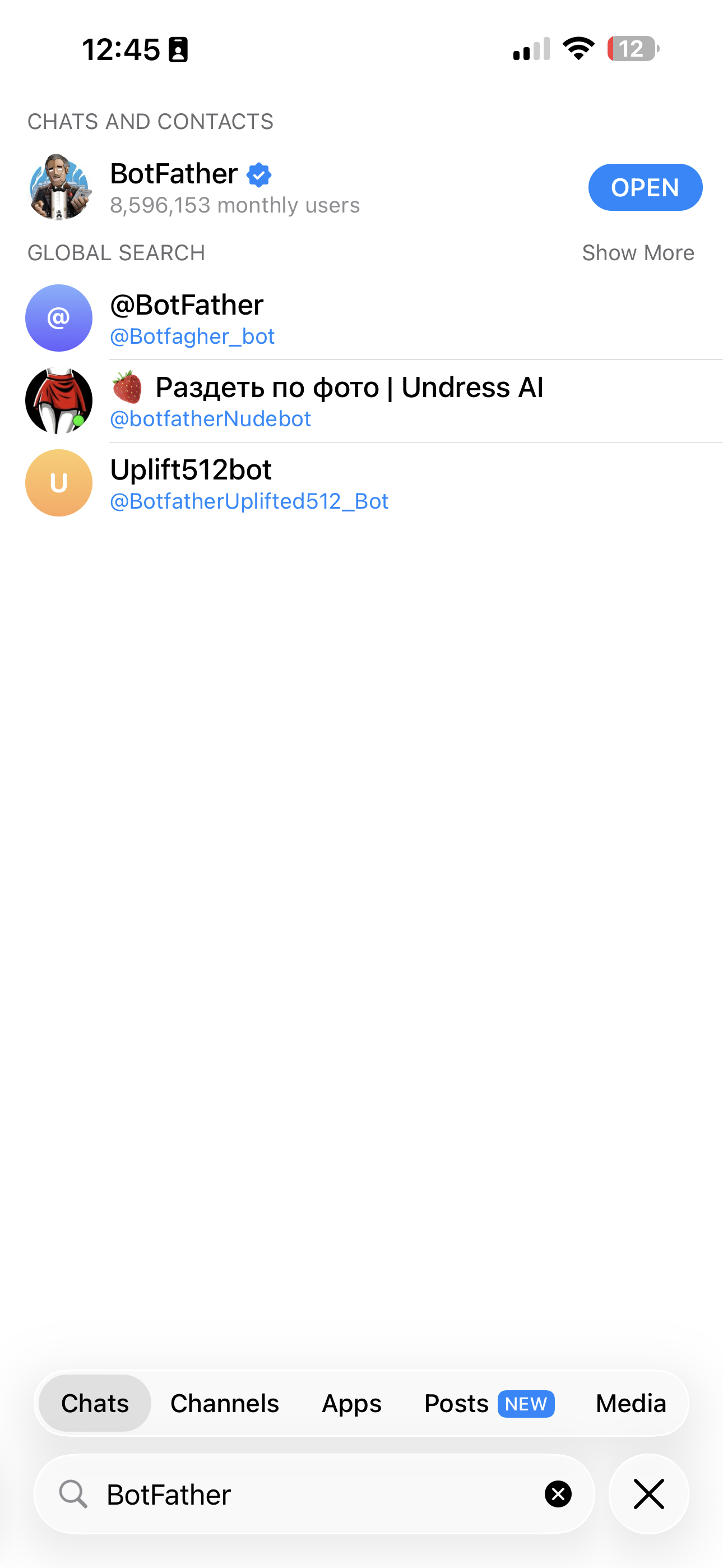
Telegram mobile — choose the verified BotFather -
If this is your first time, tap Start. Then create a bot with the New bot
screen, or by sending
/newbot. Enter a name (what people see) and a username. Use the same name as this GHL sub-account or location — that is the Telegram contact name people see. The username must be unique and end inbot, likeYourBusiness_bot.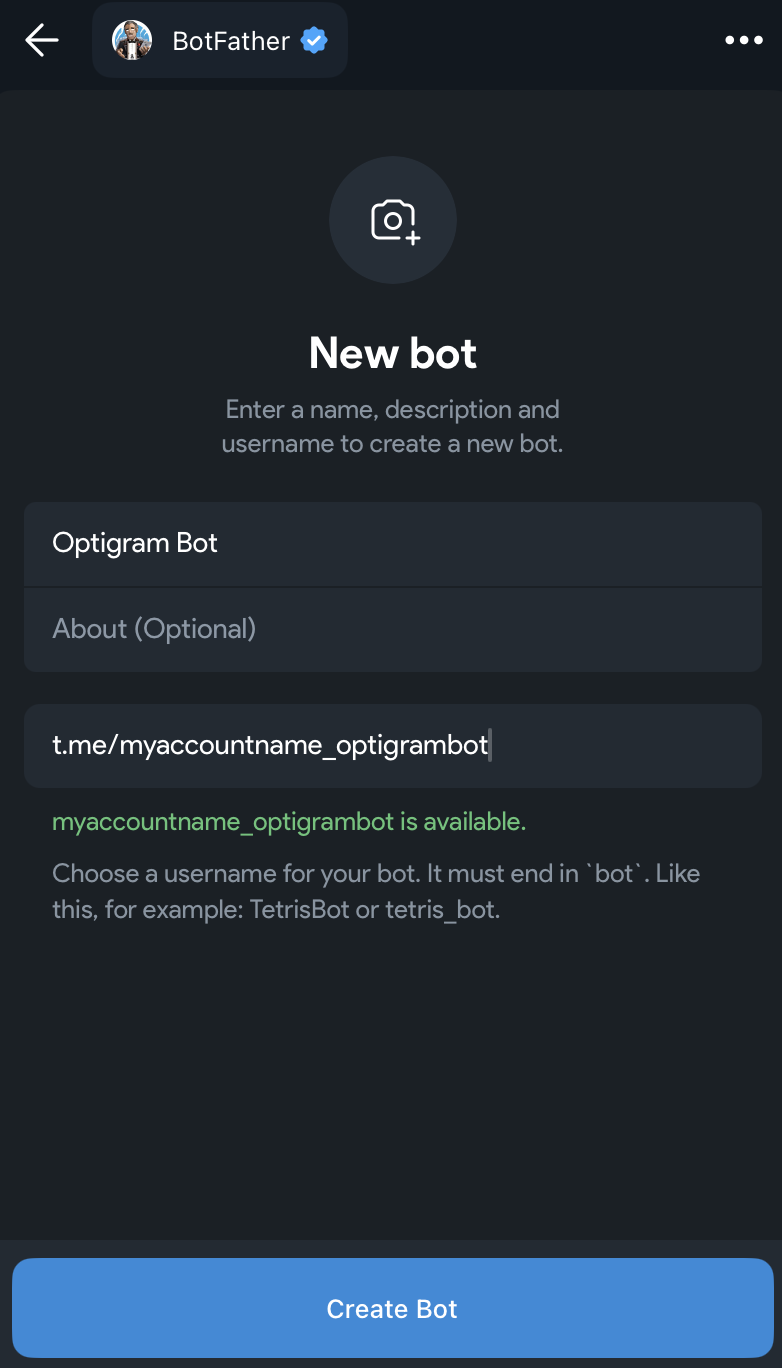
New bot — name and username -
Copy the bot token. Treat it like a password — anyone with it can send as your bot.
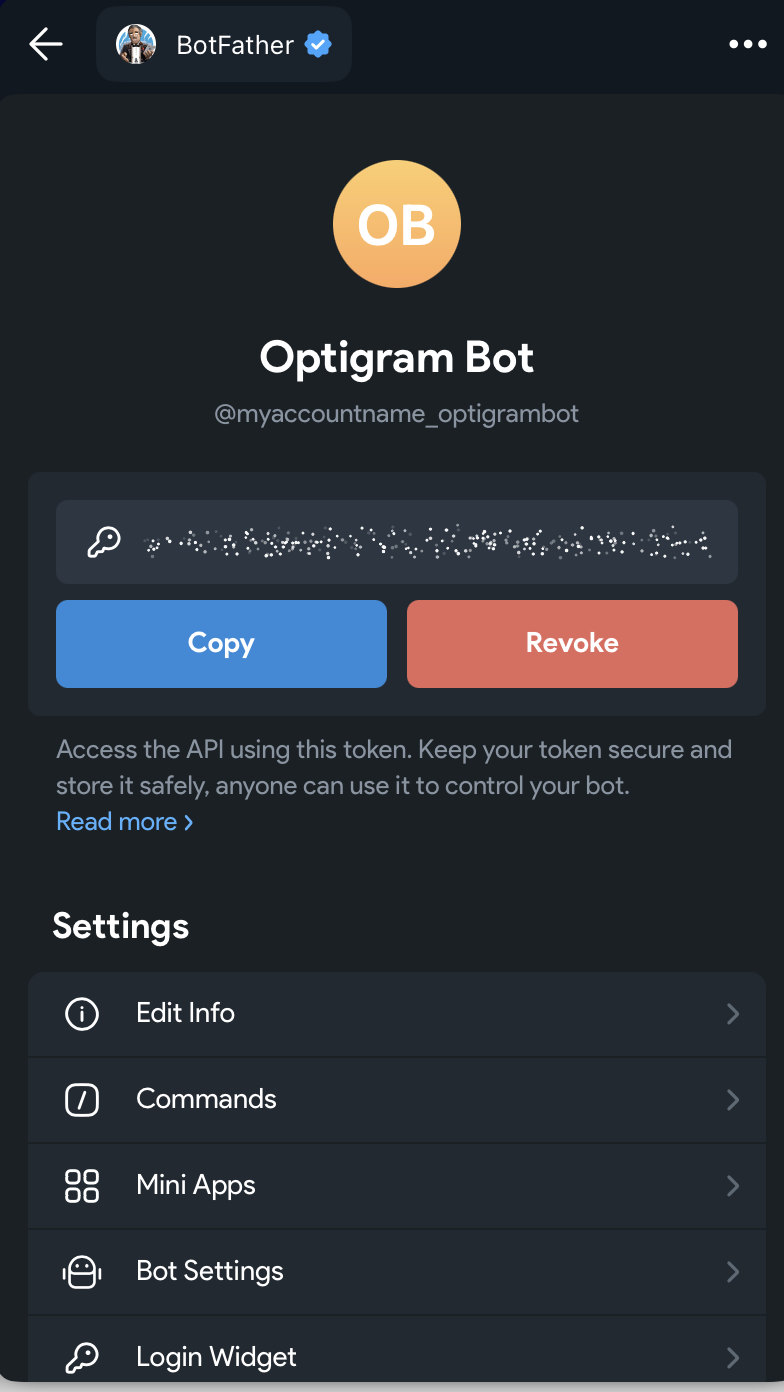
Copy the API token -
In that GHL sub-account, open Optigram from the left menu (Custom Page). Paste the token
into BotFather token and connect. Optigram checks the token, stores it encrypted, and
sets the webhook.
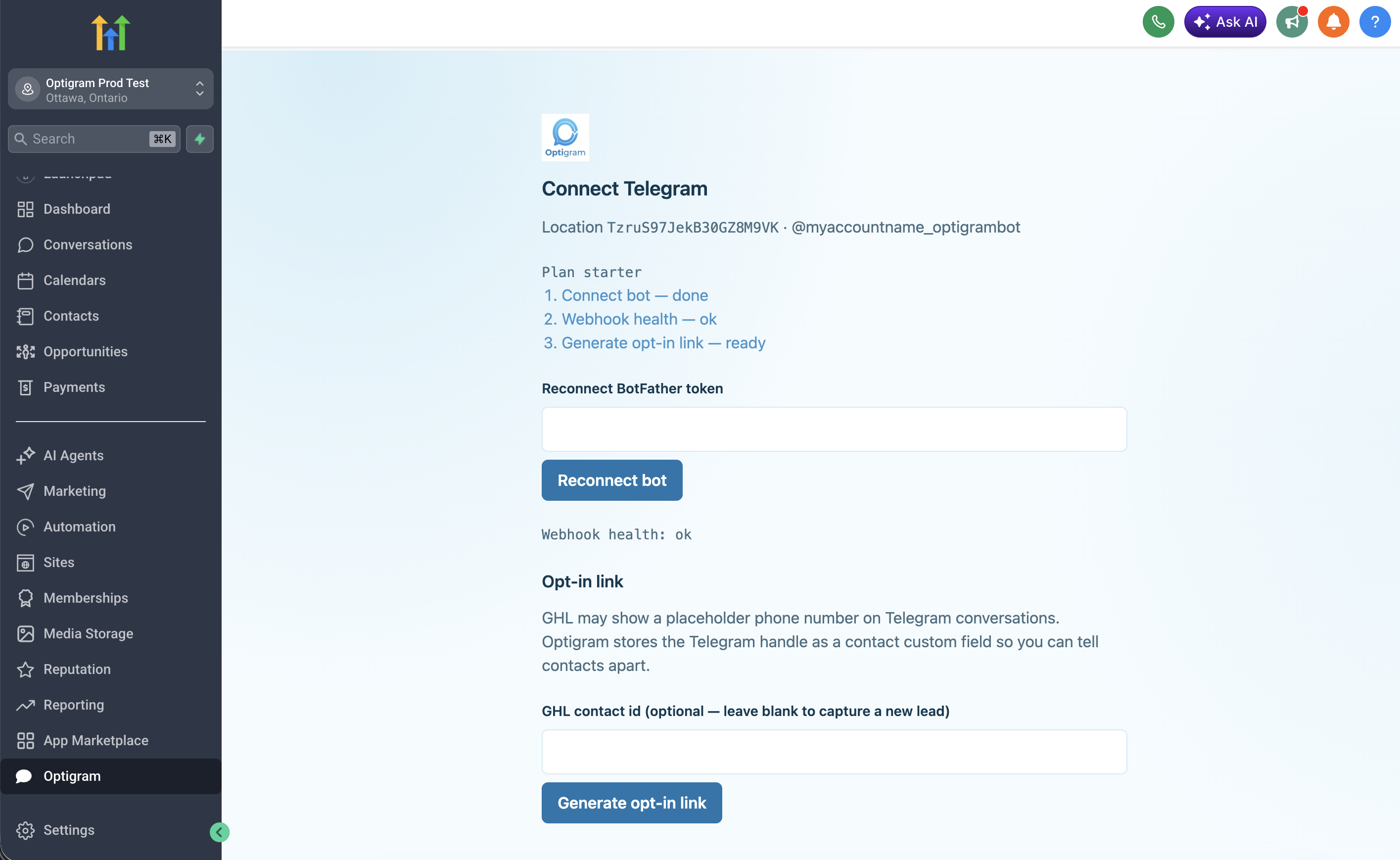
GHL Custom Page — paste the BotFather token
If the token is already connected to another Optigram location, connect is rejected. Create a new bot for this sub-account.
3. Confirm health and the provider
- Use Webhook health in the dashboard. It should report ok, with the webhook URL on Optigram’s API host.
- In GHL go to Settings → Conversation Providers and confirm Optigram (custom provider) is listed and active.
Phantom phone numbers (read this once)
GHL custom conversation providers can show a placeholder phone number on the contact. Optigram writes the Telegram username to a visible custom field named Telegram Handle so you can still identify the person. This is expected, not a misconfiguration.
Next: invite from a contact (or generate a capture-new opt-in link). You can hide or restyle the Invite button from the Custom Page and Company Custom CSS.